 Mineforgian
Resource Tree
Organize your resource packs into folders — drag & drop, navigate, color-code, rename, delete, create folders, search, sort, and manage each pack in-game with ease.
- Загрузки
- 2K
- Подписчики
- 6
- Обновлён
- 6 мая 2026 г.
- Лицензия
- MIT
Опубликован 9 марта 2026 г.
Resource Tree adds folder navigation to Minecraft's resource pack screen, so you can organize your packs into subfolders instead of scrolling through one massive list.

📁 Features
🌿 Folder Navigation
- Subfolders inside your
resourcepacksdirectory automatically appear in the resource pack screen - Click the → arrow or double-click a folder to navigate into it
- A ← Back entry appears at the top so you can navigate back up
- Each folder shows a pack count next to
<Folder>indicating how many packs are directly inside
🎨 Folder Options
- Right-click any folder to open a context menu
- Pick from 6 colors to color-code your folders: Default, Red, Blue, Green, Purple, and White
- Colors are saved and persist across game restarts
- Rename a folder directly inline
- Delete a folder (with confirmation if it contains files)

✅ Enable / Disable All
- Right-click a folder and click Enable All → to move all packs inside it to Selected at once
- Click Disable All ← to move them all back to Available
- Only affects packs directly inside that folder — nested subfolders are not affected
➕ New Folder
- Click the
+button next to the≡button to create a new folder in the current directory - Instantly enters rename mode so you can name it right away

📊 Advanced Sorting ▫️NEW▫️
- Click the
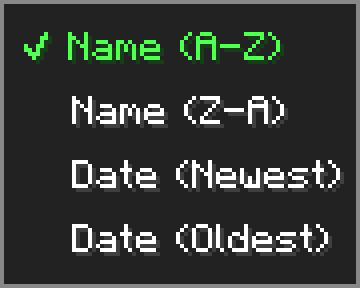
⇅button next to the search bar to open the sort menu - Sort your packs by Name (A-Z), Name (Z-A), Date (Newest), or Date (Oldest)
- Sort setting is saved and persists across game restarts
- Folders always stay pinned to the top regardless of sort mode
🖱️ Drag & Drop ▫️NEW▫️
- Hold and drag any resource pack from the available list to move it into a folder
- A ghost preview follows your cursor while dragging
- Hover over a folder to highlight it as a drop target — release to move the pack inside
- Drag onto the ← Back entry to move a pack up one folder level
- Shift+left-click any resource pack to instantly move it to the Selected list
⚙️ Options Menu
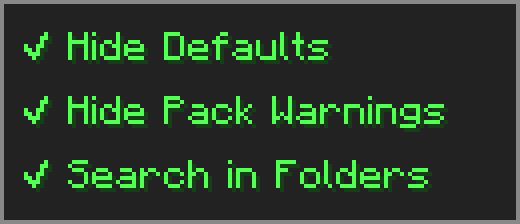
Click the ≡ button next to "Open Pack Folder" to open the options menu.
- Hide Defaults — hides High Contrast and Programmer Art from the available list
- Hide Pack Warnings — hides the red warning color on outdated resource packs
- Search in Folders — makes the search box look inside subfolders too
🔧 Compatibility
⚠️ Essential — dragging packs from Available to Selected may behave unexpectedly — use the arrow button or shift+click instead.
➕ Resourcify — works great for browsing and installing packs directly in-game.
Ченджлог
1.2.2+26.1Релиз26.1, 26.1.1, 26.1.2 · 6 мая 2026 г.
- Fixed unzipped/folder resource packs not being recognized as packs
1.2.1+26.1Релиз26.1, 26.1.1, 26.1.2 · 6 апреля 2026 г.
- Fixed resource pack files being locked while in a world
- Disabled dragging packs from the selected list
1.2+26.1Релиз26.1, 26.1.1 · 6 апреля 2026 г.
- Ported to 26.1
1.2Релиз1.21.11 · 5 апреля 2026 г.
New Features
- Advanced Sorting — sort packs by Name (A-Z), Name (Z-A), Date Newest, or Date Oldest via the new ⇅ button next to the search bar
- Drag & Drop — drag resource packs from the available list directly into folders in-game
- Quick Move — shift+left-click any pack to instantly move it to Selected
1.1Релиз1.21.11 · 29 марта 2026 г.
New Features:
- Pack count display on folders showing how many packs are inside
- Rename folder via right-click menu
- Delete folder via right-click menu (with confirmation if not empty)
- New Folder button (+) next to the settings menu
Bug Fixes:
- Fixed right-click context menu hitbox
1.0Релиз1.21.11 · 9 марта 2026 г.
Initial Release
Комментарии
Загружаем…